Best NAS for Plex in 2026: Buying Guide for Beginners
Buying a NAS for Plex is one of those purchases where the wrong box costs you twice: once when you buy it, and again when your movies stutter and you have to replace it. The good news is that the best NAS for Plex isn’t the most expensive one. It’s the one that matches how you actually watch.
This guide walks you through what matters, which Synology models make sense in 2026, and how to avoid the biggest beginner mistake: assuming every NAS can transcode video.
What Makes a NAS Good for Plex?
Plex Media Server is just software running on your NAS. It scans your library, fetches artwork, and streams files to your TV, phone, or laptop. Three things decide how smooth that experience is.
1. Direct play vs. transcoding
When your TV can play a file as-is, Plex simply passes it through. That’s called direct play, and it takes almost no processing power. Transcoding happens when a device can’t handle the file’s format or bitrate (or you stream away from home on a slow connection), so the server converts the video on the fly. That’s the heavy part.
Hardware transcoding is much more efficient than software transcoding, but it has requirements. According to Plex’s own hardware-acceleration documentation, it generally requires an active Plex Pass, and on NAS devices it depends on the CPU and firmware (HEVC output needs a Jasper Lake or newer Intel chip, for example).
2. The CPU
Many Synology models use Intel Celeron processors, which include an integrated GPU that Plex can use for transcoding on supported setups. Models with AMD Ryzen CPUs, like the DS923+, have no integrated graphics, so they can’t do hardware transcoding at all. They still make excellent Plex servers if your devices direct play.
3. Drive bays and storage
Movies add up fast. A two-bay NAS is plenty for most people starting out. If your library is already large or growing quickly, a four-bay gives you room to expand without migrating everything later.
Best NAS for Plex: Our Picks
All of these are Synology models, which we like for beginners because the DSM software is friendly and Plex installs from the Package Center. Check the Plex NAS compatibility list before you buy, since support details change with firmware updates.
Budget pick: Synology DS223j
The DS223j is the cheapest way into Plex on a Synology. It’s an entry-level ARM-based model with no hardware transcoding, so it works best when your TV and streaming devices can direct play your files. If you mostly watch at home on modern devices, it’s a perfectly reasonable starting point.
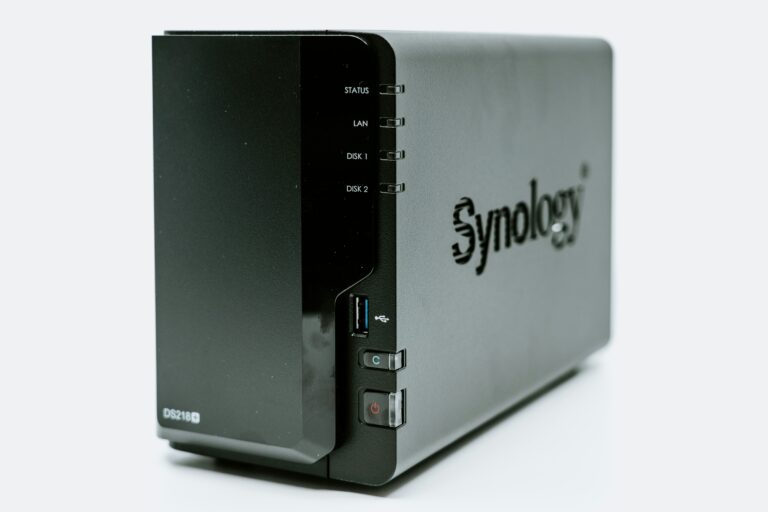
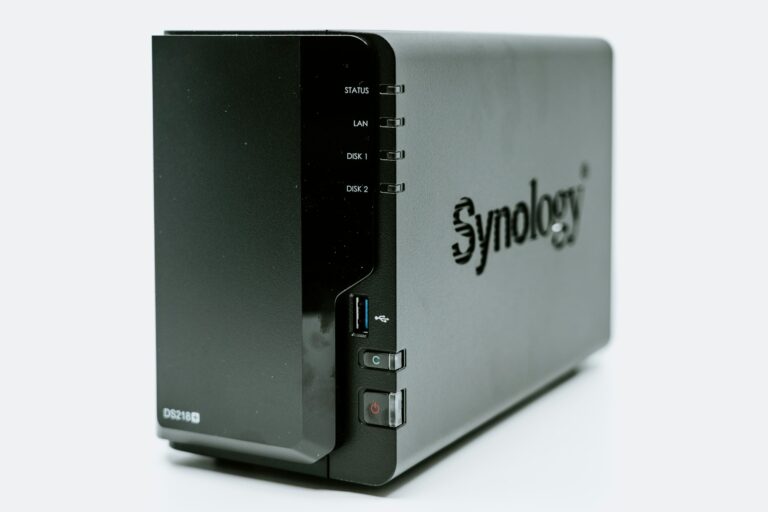
Best all-rounder: Synology DS224+
The DS224+ uses an Intel Celeron J4125, which has an integrated GPU. It’s the model most Plex guides point to for two-bay setups because of its transcoding capability, though you should confirm current Plex hardware-transcoding support on your DSM version before relying on it, as Synology has changed driver support in some recent updates.
Newer two-bay: Synology DS225+
The DS225+ is the newer sibling, with the same Celeron J4125 class of processor, 2 GB of RAM (expandable), and two drive bays. Some users report that hardware transcoding doesn’t work on it out of the box, so treat it as a direct-play machine unless you’ve confirmed otherwise for your setup.
Room to grow: Synology DS923+
The DS923+ is a four-bay with an AMD Ryzen CPU. No hardware transcoding, but plenty of power for direct play, multiple users, and running other apps alongside Plex, like the containers in our Docker on Synology guide.
Do You Need Plex Pass?
You can run Plex Media Server and stream across your home network for free. Plex Pass is a paid subscription that unlocks extras, and hardware transcoding is the one that matters most for NAS buyers. If your devices direct play everything, you may never need it. If you have older TVs, share with family on different devices, or stream outside your home, it’s worth considering. Check Plex’s current pricing on their site, since plans change.
Common Mistakes When Choosing a NAS for Plex
- Buying for specs you won’t use. A powerful CPU matters only if you actually transcode. Many households never do.
- Skipping the compatibility check. Firmware updates can change what a NAS supports. Always check the current Plex and Synology documentation before purchase.
- Ignoring 4K. 4K files are large and demanding. Make sure your TV or streaming device can direct play them, because most budget NAS units can’t transcode 4K smoothly.
- Buying too few bays. Starting with one drive and no room to grow is the most common regret.
Which Should You Choose?
- Your devices all direct play: pick based on bays and budget. The DS223j or DS225+ will do.
- You stream to many different devices or away from home: prioritize a model with confirmed hardware transcoding, and plan on Plex Pass.
- Your library is big or growing: go four-bay, so the DS923+ makes sense.
- You want the simplest setup: any of the above works, and the DS224+ is a safe middle ground.
A practical tip: if you’re unsure, fix the problem at the source. Modern streaming sticks and smart TVs that handle HEVC will direct play most of your library, which means your NAS barely breaks a sweat.
Don’t Forget the Drives
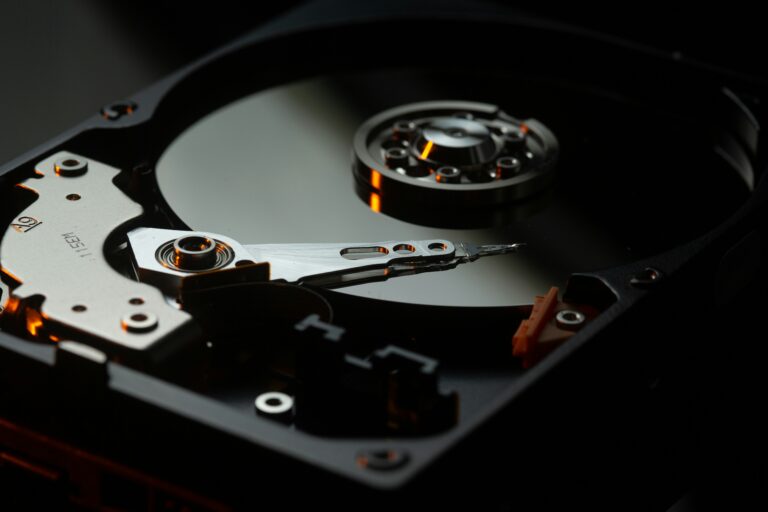
A NAS is only as good as the drives inside it. For Plex, you want drives built for 24/7 NAS use. Two reliable options are the Seagate IronWolf 4TB and the WD Red Plus 4TB. We compare them in more detail in our Synology NAS hard drives guide. Always check Synology’s compatibility list for your exact NAS and drive model before buying.
If you want to protect against power blips, a small UPS such as the APC Back-UPS 600VA is cheap insurance for your library.
Getting Started
- Decide your streaming plan. List the devices you’ll watch on and whether they direct play your files.
- Pick your NAS using the guide above and confirm Plex support on the compatibility list.
- Buy NAS-rated drives and check them against Synology’s compatibility list.
- Install Plex. Follow our step-by-step Plex setup guide (the same steps apply to most Synology models).
- Add your media into a clean folder structure and let Plex scan it.
Start with the simplest option that fits your devices. You can always upgrade later, and your drives and media move with you when you do.