How to Stop Paying for Cloud Storage in 2026: Own Your Data Forever
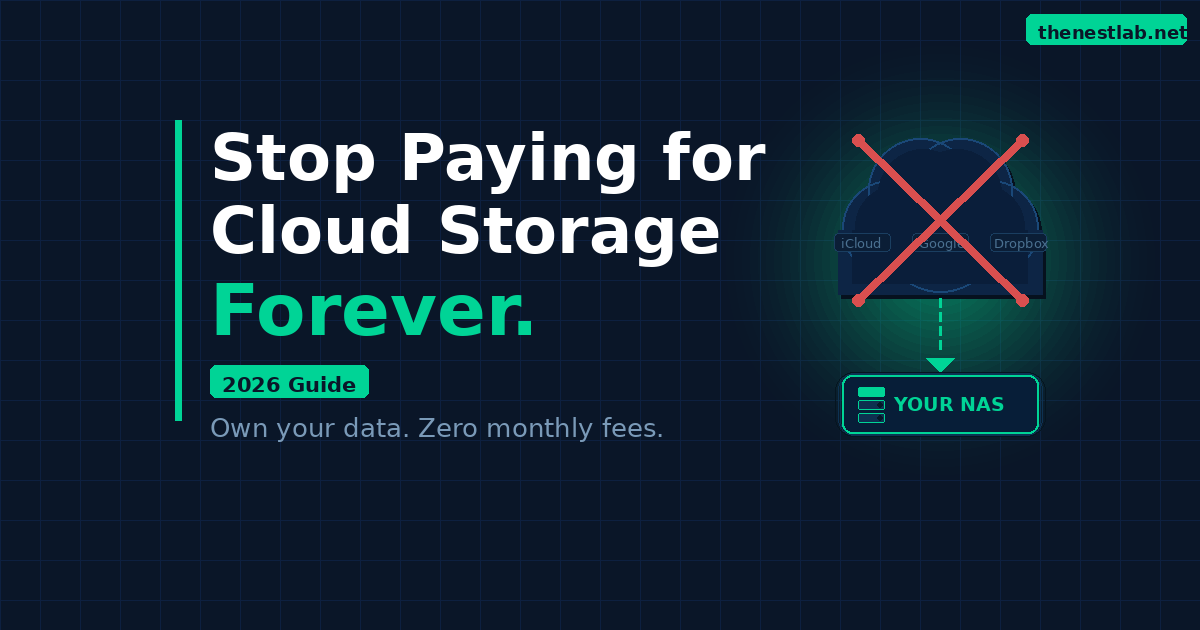
The average person pays for three cloud storage subscriptions simultaneously. iCloud for their iPhone. Google One for their Android or Gmail. Dropbox or OneDrive for work files. Add them up and you’re looking at $15–30 a month — $180–360 a year — just to store files that are yours on servers you don’t own or control.
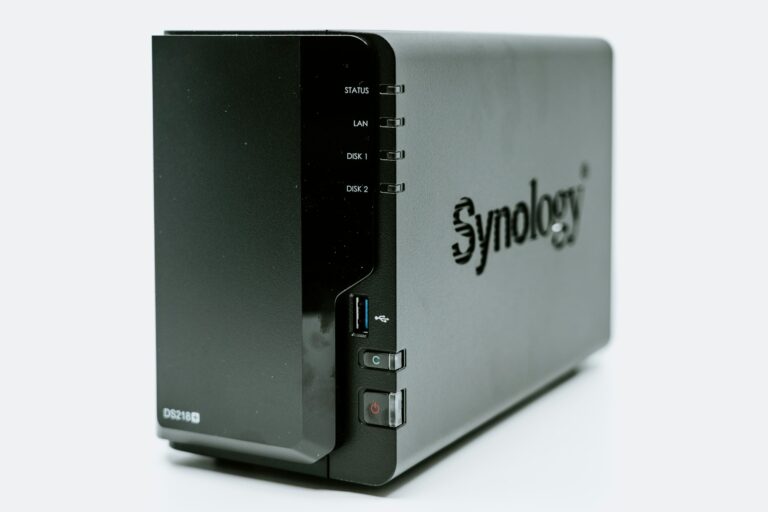
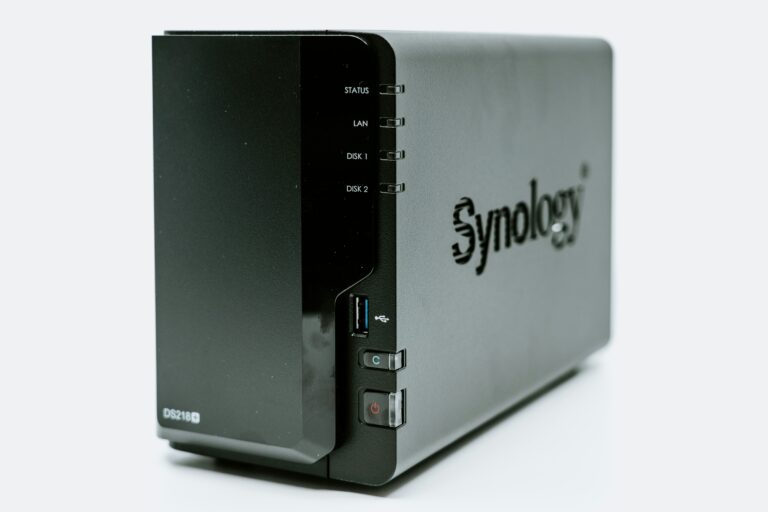
There’s a better way. A one-time hardware purchase replaces every cloud storage subscription you have, keeps your data on hardware in your own home, and costs nothing month to month after setup. A Synology NAS paired with quality hard drives is how most people make the switch.
This is how to do it.
What You’re Actually Paying For
Let’s start with a realistic look at the cloud storage subscriptions most people are running:
| Service | Plan | Monthly Cost | Annual Cost |
|---|---|---|---|
| iCloud | 200GB | $2.99 | $35.88 |
| iCloud | 2TB | $9.99 | $119.88 |
| Google One | 200GB | $2.99 | $35.88 |
| Google One | 2TB | $9.99 | $119.88 |
| Dropbox Plus | 2TB | $11.99 | $143.88 |
| OneDrive | 100GB | $1.99 | $23.88 |
Most people running two of these mid-tier plans are spending $240–300 a year. People with large photo libraries on iCloud’s 2TB plan plus Google One are spending over $200 a year without thinking about it.
That money compounds. $240/year for 10 years is $2,400 spent on storage you never own.
The Alternative: A NAS
A NAS — Network Attached Storage — is a small device that sits on your home network and stores your files locally. Every device in your home accesses it over Wi-Fi just like cloud storage, but the data lives in your house on drives you own.
The total hardware cost for a solid home NAS setup:
| Item | Cost |
|---|---|
| Synology DS223j | ~$195 |
| 2x WD Red Plus 4TB | ~$160 |
| APC Back-UPS 600VA | ~$65 |
| Total | ~$420 |
Compare that to iCloud 2TB at $9.99/month:
- Break even: 35 months (under 3 years)
- After 5 years: You’ve saved $180
- After 10 years: You’ve saved $780
And that’s replacing just one subscription. Replace two or three and the math becomes compelling within 18 months.
What Each Cloud Service Gets Replaced With
iCloud Photos → Synology Photos
Synology Photos is a free app included with every Synology NAS. Install it on your NAS, download the Synology Photos app on your iPhone, enable backup, and your camera roll uploads automatically over Wi-Fi — full resolution, no compression.
Features include facial recognition (runs locally on your NAS), album organization, shared albums, and a clean mobile app that works almost identically to iCloud Photos. A web interface lets you browse your photos from any browser.
What you lose: iCloud’s seamless iOS integration is slightly smoother. Live Photos and burst photos work but the experience isn’t quite as polished as iCloud’s native integration.
What you gain: Full resolution photos stored on hardware you own. No storage limits beyond your drive capacity. No monthly fee.
Google Drive / iCloud Drive / Dropbox → Synology Drive
Synology Drive is a full file sync and sharing solution included with your NAS. Install the Synology Drive client on your Mac or PC and it syncs folders between your computer and NAS exactly like Dropbox or Google Drive.
The mobile app lets you access any file on your NAS from your phone. Shared links let you share files with people outside your home — just like Dropbox.
Team Folders let multiple people in your household sync shared folders — useful for families sharing documents, photos, or project files.
iCloud Backup / Google Backup → Hyper Backup
Hyper Backup is Synology’s backup solution. It backs up your NAS data to an external drive, another NAS, or a cloud service like Backblaze B2 (which costs a fraction of consumer cloud storage — about $7/month for a terabyte).
For serious data protection follow the 3-2-1 backup rule:
- 3 copies of your data
- 2 different storage media
- 1 offsite copy
Your setup: files on the NAS (copy 1), RAID 1 mirror on the second drive (copy 2), Hyper Backup to Backblaze B2 (copy 3, offsite).
Netflix / Streaming → Plex
If you have a media collection — movies, TV shows, home videos — Plex on your Synology NAS replaces streaming subscriptions for content you already own. Your entire library becomes available on every screen in your home with a Netflix-style interface.
We have a complete guide to setting up Plex on Synology if you want to go further with this.
The Complete Replacement Stack
Here’s the full picture of what a Synology NAS replaces:
| Cloud Service | NAS Replacement | Monthly Savings |
|---|---|---|
| iCloud Photos 2TB | Synology Photos | $9.99 |
| Google Drive 200GB | Synology Drive | $2.99 |
| Dropbox Plus | Synology Drive | $11.99 |
| iCloud Backup | Hyper Backup | $0.99 |
| Streaming (partial) | Plex | varies |
| Total potential savings | $25+/month |
$25/month is $300/year. Your NAS hardware pays for itself in 17 months and saves you $300 every year after that.
What About Google Photos Specifically?
Google Photos deserves its own mention because it’s the hardest subscription to leave. Unlimited free storage ended in 2021 and most heavy users have large libraries already stored there.
The migration path:
- Use Google Takeout (takeout.google.com) to download your entire Google Photos library
- Copy the downloaded files to your Synology NAS media folder
- Let Synology Photos index and organize them
- Set Synology Photos as your new camera backup destination
- Stop paying for Google One
The download can take hours or days depending on library size but it’s a one-time process. After migration your photos are home and the subscription is done.
We cover this in detail in our dedicated guide to self-hosted Google Photos alternatives.
Do You Need a NAS or Will a Raspberry Pi Work?
For pure file storage and photo backup, a NAS is the better choice. It’s designed to run 24/7, has proper drive slots for multiple drives, and Synology’s software is significantly more polished than DIY alternatives.
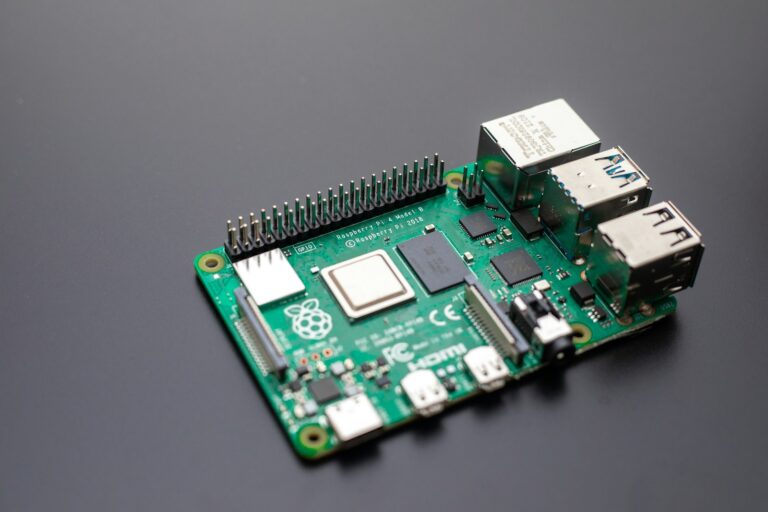
A Raspberry Pi running Nextcloud is a popular self-hosted option but requires more technical setup and doesn’t scale as gracefully as a Synology NAS. For beginners, the NAS wins on simplicity and reliability.
That said, if you already have a Raspberry Pi running Home Assistant, adding Nextcloud as a Docker container is a legitimate option for light file sync needs. It just isn’t a full iCloud replacement the way a NAS is.
The One Subscription Worth Keeping
Be strategic about what you cut. Some cloud services provide value beyond storage:
Keep: iCloud at the free 5GB tier — iMessage backups, Keychain passwords, and Find My all depend on iCloud and you don’t want to break them. The free tier covers these.
Cut: iCloud 50GB, 200GB, and 2TB paid plans — your NAS handles photos and files.
Keep: Google account (free) — Gmail, Calendar, and Docs don’t require Google One storage.
Cut: Google One paid plans — your NAS handles the storage.
Cut: Dropbox paid plans — Synology Drive replaces this entirely.
Getting Started Today
The fastest path to canceling your first cloud subscription:
Step 1: Order a Synology DS223j and two WD Red Plus 4TB drives.
Step 2: Follow our complete setup guide to get it running.
Step 3: Install Synology Photos on your iPhone and enable backup.
Step 4: Once your photos are backed up to the NAS, downgrade your iCloud plan.
That’s your first $10/month saved. The whole process takes one afternoon.
Already have your NAS set up? Read our complete guide to replacing iCloud with a Synology NAS for the full step-by-step setup walkthrough.