Docker on Synology NAS: A Beginner’s Guide
If your Synology NAS spends its life quietly backing up files and not much else, you’re leaving most of its horsepower on the table. Modern Synology boxes are genuinely capable little servers, and running Docker on Synology NAS hardware is the easiest way to put that unused capacity to work — a password manager, an ad blocker, a photo backup tool, a status dashboard, or a dozen other self-hosted apps, all running on the same box that’s already storing your files. No extra hardware to buy, no extra outlet to find, no extra monthly subscription.
The catch is that Synology doesn’t call it “Docker” anymore, not every model supports it, and the setup process looks a little different from what you’d find on a regular Linux box. This guide covers what Docker on Synology NAS actually means, which models can run it, and how to get your first container up and running.
What Is Docker on Synology NAS?
Docker packages software into lightweight, self-contained units called containers. Each container bundles an app with everything it needs to run, so instead of manually installing dependencies and fighting version conflicts, you download a pre-built image and run it. On a Synology NAS, that capability comes through a package called Container Manager — Synology’s rebrand of its older “Docker” package, introduced with DSM 7.2. If you see either name mentioned online, they’re the same feature; older tutorials just predate the rename.
Container Manager lets you pull images straight from Docker Hub and run them through Synology’s own DSM interface, with no command line required (though SSH and docker-compose are both available if you prefer working that way). Popular things people run this way on a home NAS include:
- Pi-hole or AdGuard Home for network-wide ad blocking
- Portainer, a web dashboard for managing all your other containers
- Uptime Kuma, a self-hosted status page that pings your other services
- Immich or PhotoPrism for self-hosted photo backup
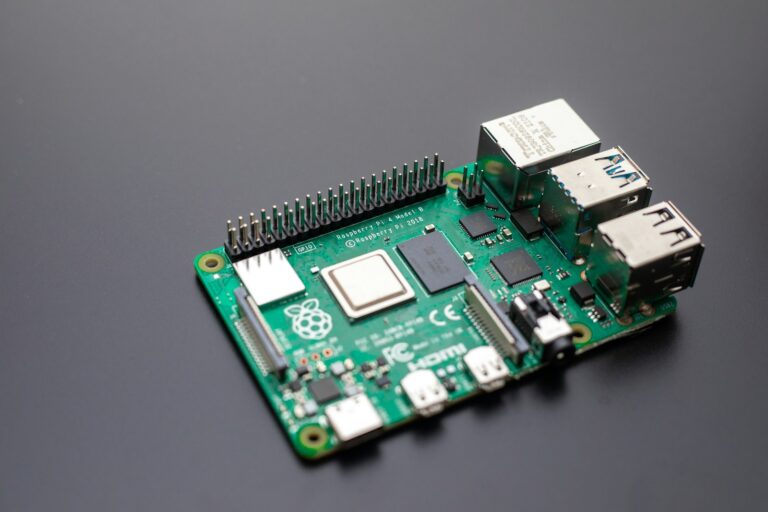
- Home Assistant, if you’d rather run it on your NAS than on a dedicated Raspberry Pi
You can find the official rundown of the package on Synology’s Container Manager page.
Which Synology NAS Models Can Run Docker?
This is where more beginners get tripped up than anywhere else in the process. Container Manager requires DSM 7.2 or later, and it isn’t available on every model — Synology’s cheaper, entry-level “value line” units generally don’t have the hardware for it, either because of RAM limits or CPU architecture. Before you buy a NAS specifically to run Docker on, check the exact model against Synology’s own Container Manager compatibility list rather than assuming it works.
There’s a second wrinkle even on models that do support the package: some older or budget CPUs lack an instruction set called AVX (Advanced Vector Extensions), which a number of popular container images quietly require. Container Manager will still install fine on these units, but specific containers can fail to run with no obvious explanation. Marius Hosting keeps an up-to-date breakdown of which Synology models are actually good picks for Docker, and it’s worth a check if you’re shopping for hardware.
DS225+ vs. DS923+: Which Should You Buy?
If you don’t already own a Synology NAS, these two models cover most beginners: one is the cheapest realistic entry point, the other is the one to buy if you know you’ll be running more than a couple of lightweight containers.
| Synology DS225+ | Synology DS923+ | |
|---|---|---|
| CPU | Intel Celeron J4125 (no AVX) | AMD Ryzen R1600 (AVX supported) |
| RAM | 2GB, expandable to 6GB | 4GB, expandable further |
| Bays | 2 | 4 |
| Container Manager support | Yes | Yes |
| Best for | A handful of lightweight containers | Multiple containers, heavier self-hosted apps |
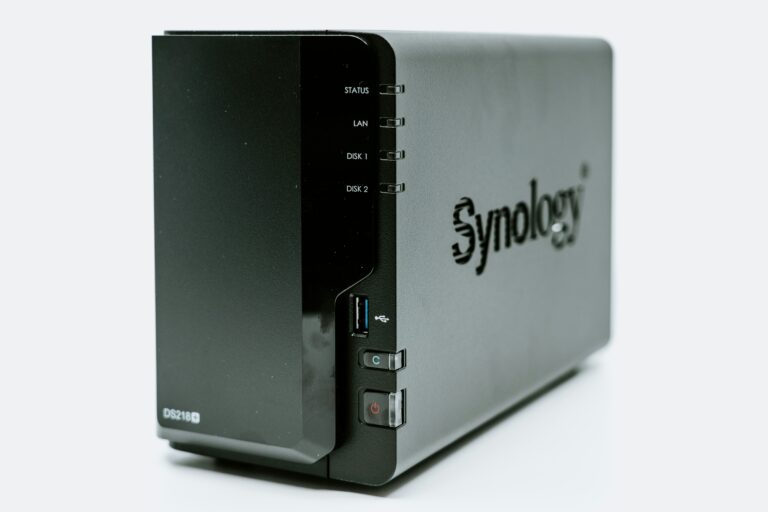
The DS225+ is the current 2-bay entry point in Synology’s Plus lineup (it replaced the older DS224+, keeping the same CPU but adding a faster 2.5GbE port) and it’s a genuinely good pick for simple containers like Pi-hole, Uptime Kuma, or Portainer. What it won’t do gracefully is run anything that needs AVX, which rules out some heavier self-hosted apps you might want to grow into later. The DS923+ costs more but its AMD Ryzen CPU supports AVX and it ships with double the RAM, so it has real headroom for things like Immich or Nextcloud without hitting a wall a few months in.
Either way, pair it with NAS-rated drives rather than desktop hard drives — we like the WD Red Plus 4TB on Amazon → for a reliable starting point, and our Synology hard drive comparison covers the tradeoffs if you want to go deeper. If you’re setting up a NAS from scratch for the first time, our beginner’s guide to a Synology NAS covers the initial setup before you ever touch Container Manager.
Prices on Synology hardware move around fairly often — treat the numbers above as ballpark and check the current Amazon listing before you buy.
Getting Started with Docker on Synology NAS
Here’s the whole process, start to finish, using Uptime Kuma (a simple self-hosted status page) as a first project — it’s genuinely useful, low-risk, and gives you a visual payoff in about ten minutes.
- Update DSM. Go to Control Panel > Update & Restore and make sure you’re on DSM 7.2 or later. Container Manager won’t show up in Package Center until you are.
- Install Container Manager. Open Package Center, search “Container Manager,” and install it like any other Synology package.
- Open the Registry tab. Inside Container Manager, go to Registry and search for “uptime-kuma.” Select the official image and click Download.
- Create the container. Once it’s downloaded, go to the Container tab, select the image, and click Create. Map port 3001 on the container to an open port on your NAS (3001 is fine unless it’s already in use).
- Set up persistent storage. On the volume settings step, map a shared folder on your NAS (create one called “docker” if you don’t have one) to the container’s data directory. This keeps your data intact if you ever rebuild the container.
- Start it up. Apply the settings and start the container. Visit
http://[your-NAS-IP]:3001in a browser and you should see the Uptime Kuma setup screen.
That’s it — you’re running Docker on Synology NAS hardware. From here, the pattern is identical for almost anything else you want to self-host: find the image in the Registry, map a port, map a volume for anything that needs to persist, and start the container.
Keeping Containers Running Smoothly
A few habits keep Docker on Synology NAS running reliably long after the initial setup:
- Always map persistent data to a shared folder outside the container itself, not inside it — container storage disappears if you delete or rebuild the container.
- Check for image updates periodically in Container Manager rather than assuming you’re always on the latest version.
- Back up your container configs and mapped folders with Hyper Backup, the same as you would any other data on the NAS.
- Keep an eye on RAM usage if you start stacking up containers — the Resource Monitor in DSM will show you when you’re getting close to a ceiling.
Our Recommendation
For most people dipping a toe into self-hosting for the first time, a DS225+ with Container Manager is plenty — it’ll comfortably run Pi-hole, Portainer, Uptime Kuma, and similar lightweight tools without any fuss. If you already know you want to run something heavier down the line, like Immich or Nextcloud, spend the extra money upfront on a DS923+ so you’re not re-buying hardware in six months. Either way, running Docker on Synology NAS turns a box that was just quietly storing files into the single most useful device on your home network.