Pi-hole Raspberry Pi Setup: The Easy Way to Block Ads (2026)
A Pi-hole Raspberry Pi setup is one of the best weekend upgrades you can make to a home network: it blocks ads and trackers on every device you own, all at once, without installing anything on any of them. If you’ve ever installed an ad blocker in Chrome and then opened YouTube on your smart TV five minutes later and gotten hit with a pre-roll ad anyway, you already understand why a browser extension alone isn’t enough.
Browser extensions only protect the browser they’re installed in. Your smart TV doesn’t get one. Neither does your kid’s tablet, your game console, your smart speaker, or the eight other devices connected to your Wi-Fi right now. Pi-hole fixes all of that at the source, and it runs comfortably on a Raspberry Pi that costs less than a nice dinner out.
What Is Pi-hole? (And Why It’s Different From a Browser Ad Blocker)
Pi-hole is free, open-source software that acts as a DNS sinkhole for your entire home network. In plain terms: it sits between your devices and the internet, checks every domain your devices try to reach against constantly updated blocklists of known ad and tracking servers, and simply refuses to hand back an address for the ones that match. The ad never loads, because the device never gets anywhere to load it from.
Because it works at the network level instead of inside a browser, a Pi-hole Raspberry Pi setup blocks ads and trackers on:
- Smart TVs and streaming boxes, including the ads baked into the TV’s own home screen
- Phones and tablets connected to your Wi-Fi, even outside their browsers
- Game consoles
- Smart home devices phoning home to ad and analytics networks
- Every browser on every computer in the house, with zero extensions installed
It won’t catch ads inside apps that hardcode their own servers instead of using DNS, and it isn’t a VPN or antivirus replacement. But for the everyday ad and tracker load most households deal with, it’s a bigger win for less ongoing effort than almost anything else you can do to your home network.
What You’ll Need
A Pi-hole Raspberry Pi setup is deliberately lightweight. The official Pi-hole documentation lists just 512MB of RAM and 2GB of free storage as the minimum, with 4GB of storage recommended. You genuinely don’t need powerful hardware here.
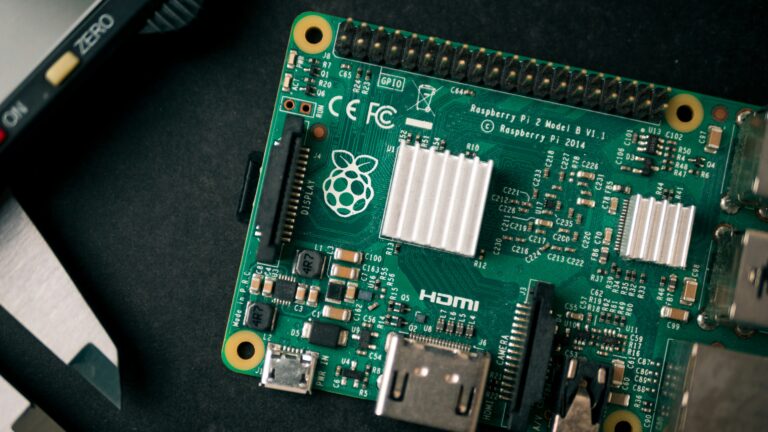
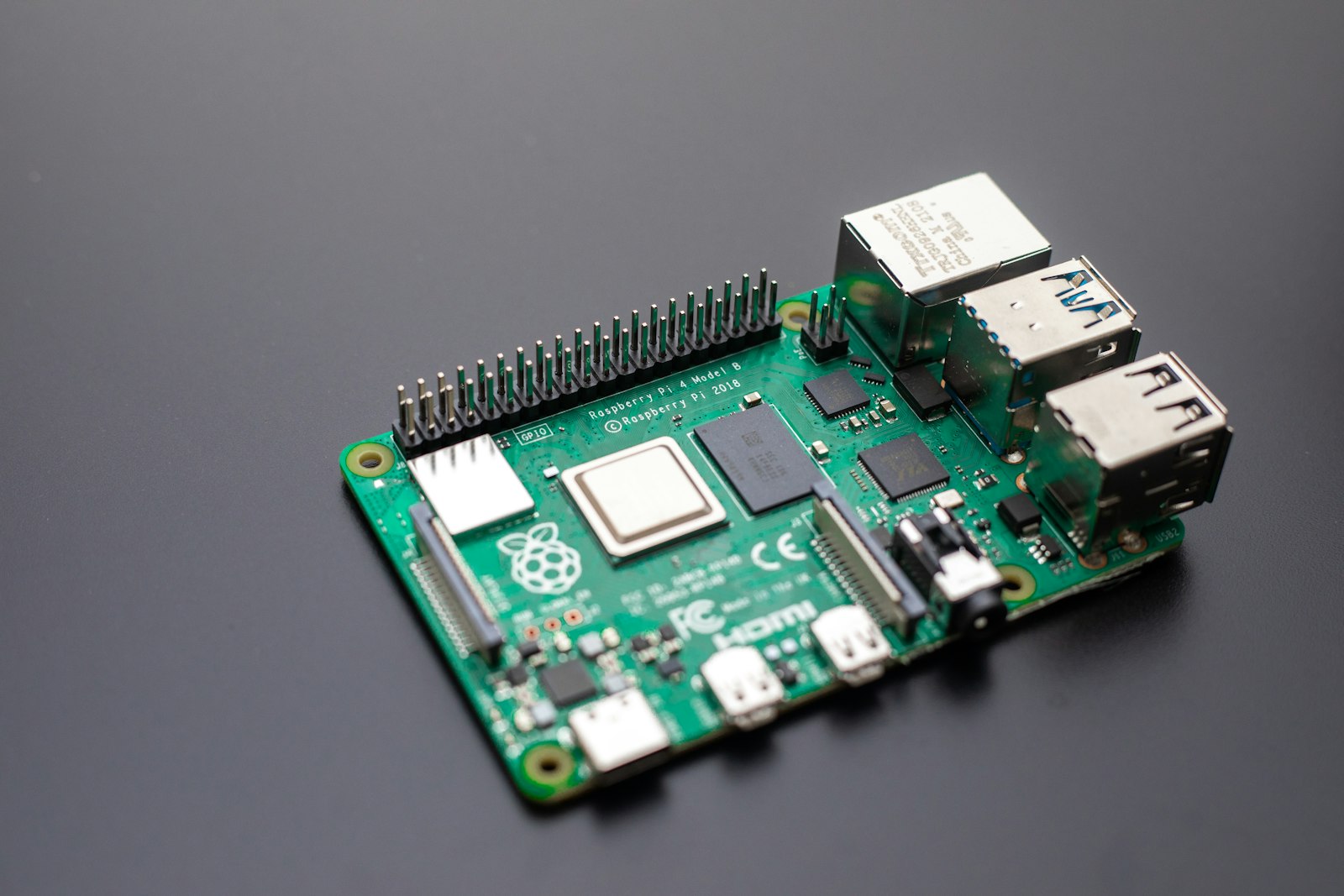
- A Raspberry Pi. If you already have an idle Pi in a drawer, even an older model, it’s almost certainly enough. Buying new, a Raspberry Pi 4 (4GB) is the easiest option to find and far more than Pi-hole will ever ask of it. If you want a deeper breakdown of which Pi model to buy for a project like this, we compare the Pi 4 and Pi 5 in our Raspberry Pi buying guide.
- A microSD card, at least 8GB. We’d still recommend a reliable card, since it’s also holding the operating system and logging activity continuously.
- A wired Ethernet connection, strongly preferred over Wi-Fi. Pi-hole is about to become core network infrastructure; you don’t want your DNS server dropping out along with your Wi-Fi signal.
- A power supply and case. Any basic 5V/3A USB-C supply and a case sized for your specific Pi model works fine. Pi-hole isn’t demanding enough to need anything special here.
Raspberry Pi 4 4GB on Amazon →
SanDisk Extreme Pro 64GB on Amazon →
Pi-hole Raspberry Pi Setup: Step-by-Step
1. Flash Raspberry Pi OS Lite
Download the free Raspberry Pi Imager tool and flash Raspberry Pi OS Lite, the version without a desktop, onto your microSD card. You don’t need a GUI, and Pi-hole shouldn’t be sharing resources with one. Before writing, use the Imager’s settings gear icon to pre-configure Wi-Fi (only if you’re skipping Ethernet), a hostname, and SSH access, so the Pi is ready to log into the moment it boots.
2. Give the Pi a Static IP Address
Pi-hole’s own setup calls out a static IP as a requirement, because if your Pi’s address changes, every device pointed at it for DNS silently loses its connection. The cleanest way to handle this is a DHCP reservation in your router’s settings, which permanently assigns the same address to your Pi’s MAC address without touching the Pi itself. If your router doesn’t support reservations, you can set a static IP directly on the Pi instead.
3. Run the Installer
SSH into your Pi and run Pi-hole’s official one-line installer:
curl -sSL https://install.pi-hole.net | bash
The installer walks you through an interactive setup: pick an upstream DNS provider (Cloudflare and Google are the two most common choices), select which blocklists to use (the defaults are a solid starting point), and choose whether to install the web admin interface, which you’ll want. At the end, it generates a password for the web dashboard, so save it somewhere before you close the terminal.
4. Point Your Router’s DNS at Pi-hole
This is the step that actually turns Pi-hole on for your whole network. Log into your router’s admin panel, find the DNS settings (usually under WAN or DHCP settings), and set the primary DNS server to your Pi’s static IP address. Every device that connects from that point on automatically uses Pi-hole for DNS, with no per-device setup required.
Don’t have router access, or want to test on one device first? You can set the DNS manually on a single phone, laptop, or TV to confirm everything’s working before rolling it out network-wide.
Pi-hole vs. AdGuard Home vs. Browser Extensions
A Pi-hole Raspberry Pi setup isn’t the only network-wide option. AdGuard Home is a popular alternative with a similar setup process and a slightly more polished interface out of the box. Both do fundamentally the same job, DNS-level blocking, and either is a legitimate choice. Pi-hole has the larger community and the longer track record, which is why it’s the one we’d point a first-timer toward.
What neither one replaces is your browser’s own ad blocker. A browser extension can still catch ad injection that happens inside page content after the page has already loaded. Running both isn’t overkill; they cover slightly different layers of the same problem.
Dedicated Pi, or a Docker Container on Your NAS?
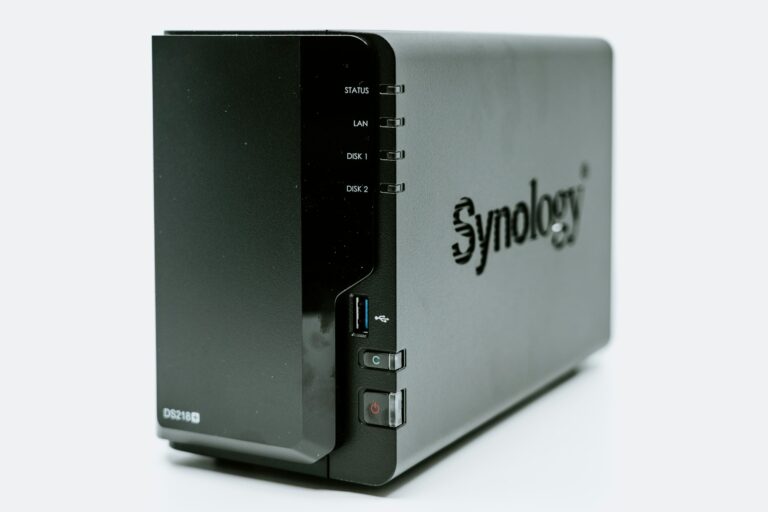
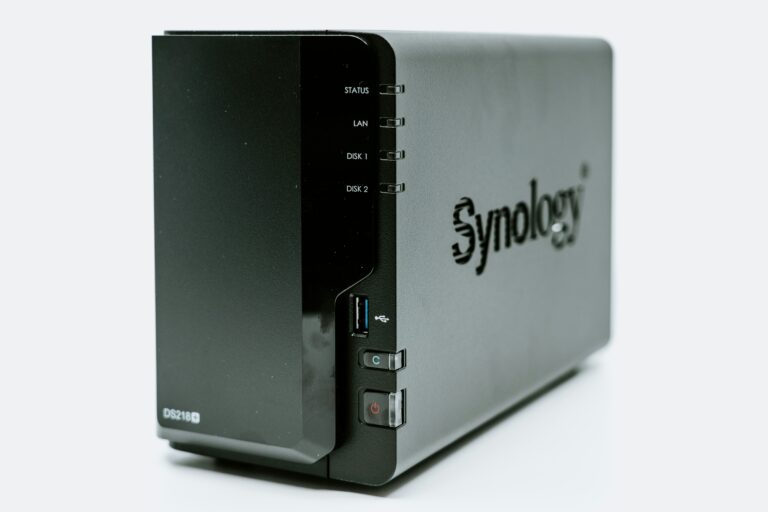
If you don’t have a spare Pi lying around but you do have a NAS already running other self-hosted apps, Pi-hole also runs well as a Docker container using the images maintained directly by the Pi-hole project. We cover running self-hosted Docker services on a Synology NAS in our guide to replacing iCloud with a Synology NAS.
The tradeoff: a dedicated Pi is a single-purpose device that’s easy to reason about and doesn’t go down when you’re rebooting your NAS for updates. A container on your NAS shares uptime with everything else running on that box. For a service as central as DNS, we lean toward giving it its own hardware when that’s an option.
What to Buy and What It Costs
Here’s the full cost of a Pi-hole Raspberry Pi setup, start to finish:
| Item | Approx. Price |
|---|---|
| Raspberry Pi 4 (4GB) | ~$55 |
| SanDisk Extreme Pro microSD (64GB) | ~$15 |
| Basic USB-C power supply & case | ~$15-20 |
| Total | ~$85-90 |
Raspberry Pi 4 4GB on Amazon →
SanDisk Extreme Pro 64GB on Amazon →
Prices on all of these move around, so treat these as ballpark figures and check the current listing before you buy.
Keeping Pi-hole Running Smoothly
A Pi-hole Raspberry Pi setup isn’t entirely “set it and forget it,” but the upkeep is light:
- Update your blocklists (“gravity”) periodically from the web dashboard. New ad domains show up constantly.
- Whitelist any site that breaks after you turn Pi-hole on. Some sites depend on an ad or analytics domain loading to function, and the dashboard makes whitelisting a specific domain a one-click fix.
- Keep Pi-hole itself updated with
pihole -upfrom the command line every so often. - Set a secondary DNS server (like 1.1.1.1) on your router as a fallback. If your Pi ever goes offline, your whole network’s internet access shouldn’t go down with it.
Our Recommendation
For most people, a Pi-hole Raspberry Pi setup is a Saturday-afternoon project with an outsized payoff: one Raspberry Pi 4, one afternoon of setup, and every device on your network, including the ones you can’t install a browser extension on, stops loading ads and trackers by default. If you already have a Pi running something else in your house, weigh whether to add Pi-hole to it (it’s light enough to share hardware) or keep it on its own dedicated board. For anything acting as core network infrastructure, we’d lean toward giving it a home of its own.