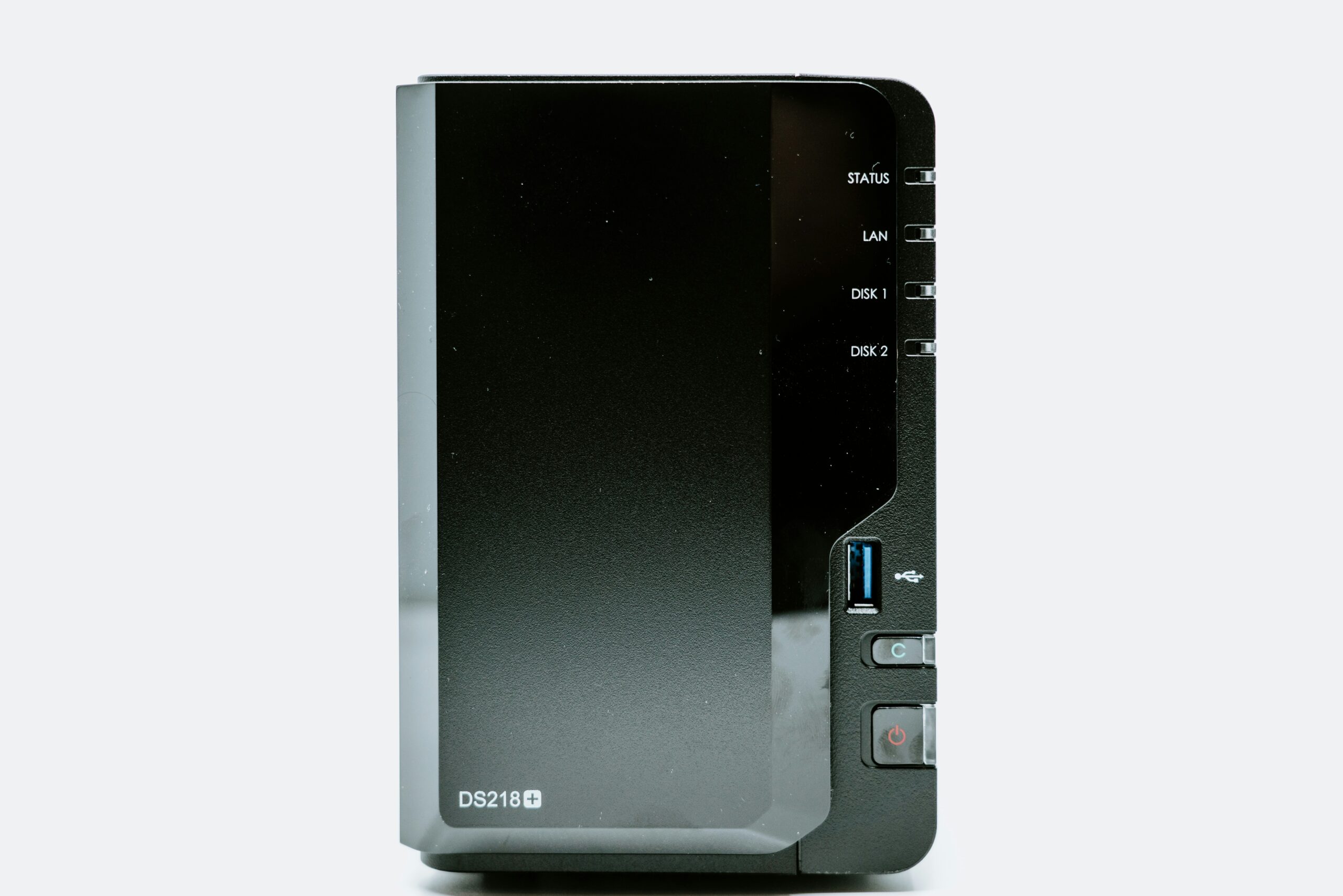
Replace iCloud With a Synology NAS: The Complete Beginner’s Guide (2026)
Still paying Apple $10 a month just to keep your photos from disappearing? You’re not alone. iCloud is convenient — until it isn’t. Surprise storage warnings, photos that won’t sync, and a monthly fee that quietly compounds into hundreds of dollars a year have pushed a lot of people to look for a way out.
The good news: there’s a one-time hardware purchase that replaces iCloud entirely, keeps your data on hardware you own, and costs nothing month to month after setup. It’s called a NAS — a Network Attached Storage device — and the Synology DS223j is the best entry point for beginners in 2026.
This guide walks you through exactly what you need, what it costs, and how to set it up. No networking degree required.
What Is a NAS and Why Does It Replace iCloud?
A NAS is essentially a small, always-on hard drive that sits on your home network. Unlike an external drive you plug into your laptop, a NAS connects to your router — which means every device in your home (your iPhone, your partner’s Mac, your laptop) can access it over Wi-Fi, just like iCloud does.
The key difference: the data lives in your home, not Apple’s servers.
Synology, the company that makes the DS223j, also ships software called Synology Photos — a near-perfect iCloud Photos replacement with a mobile app that auto-uploads your camera roll, facial recognition, and album organization. It looks and works almost identically to iCloud Photos. There’s also Synology Drive, which replaces iCloud Drive for file syncing across devices.
Once it’s running, your iPhone backs up to your NAS automatically. Your photos sync. Your files are there. The only difference is that Apple is no longer in the middle of it.
What You’ll Need
Here’s the exact hardware setup to get started. This is what I personally run and recommend:
The NAS Unit: Synology DS223j (~$195)
The Synology DS223j is a 2-bay NAS built specifically for home users. It’s quiet, energy-efficient, and Synology’s software is genuinely the best in the business for non-technical users. The web interface is polished, the mobile apps are solid, and there’s a huge community of people running exactly this setup.
Why 2-bay? Because you’ll put two drives in it running in RAID 1 — meaning one drive is a live mirror of the other. If one drive fails, your data is still safe on the second. For irreplaceable photos and files, this matters.
Buy the diskless version — the bundles that come with drives are heavily overpriced. Pick up the drives separately below.
The Drives: 2x WD Red Plus 4TB (~$75–85 each)
The WD Red Plus 4TB (WD40EFZZ) is purpose-built for NAS use. Standard desktop drives aren’t designed to run 24/7 inside a NAS enclosure — they run hotter, fail faster, and some aren’t compatible with Synology’s drive health monitoring. The Red Plus line is specifically rated for always-on NAS operation, runs cool, and is on Synology’s official compatibility list.
4TB per drive gives you 4TB of usable storage in RAID 1 (the second drive is the mirror, not bonus space). That’s enough for roughly 500,000 high-resolution iPhone photos, or years of continuous camera roll backup without worrying about space.
Total hardware cost: approximately $345–365.
Compare that to iCloud’s 2TB plan at $9.99/month — you break even in under 3 years, and after that it’s free forever.
Step-by-Step Setup
Step 1: Physical Setup (10 minutes)
Unbox the DS223j and slide your two WD Red Plus drives into the drive bays — no tools required, they snap in with plastic trays. Connect the NAS to your router with the included ethernet cable, plug in the power adapter, and press the power button. You’ll hear a beep when it boots up.
Step 2: Run DiskStation Manager Setup (15 minutes)
From any browser on your home network, go to find.synology.com. It will detect your new NAS automatically. Click through the setup wizard:
- Create your admin account (use a strong password — this is the key to everything)
- Choose DSM 7.2 when prompted (it installs automatically)
- When asked about storage configuration, select RAID 1 across both drives
- Let it initialize — this takes 10–20 minutes while the drives format
You now have a fully functional NAS with a web interface accessible from any browser on your network.
Step 3: Install Synology Photos (5 minutes)
Open the Package Center in DSM (think of it as an app store for your NAS). Search for Synology Photos and install it. It creates a shared photos folder automatically.
Then download the Synology Photos app on your iPhone (free on the App Store). Sign in with your NAS credentials and enable Backup in the app settings. Your camera roll will start uploading to your NAS over Wi-Fi immediately.
This is your iCloud Photos replacement. It’s fast, it has facial recognition, it supports Live Photos and videos, and it keeps full-resolution originals — no compression like iCloud sometimes applies.
Step 4: Install Synology Drive (5 minutes)
Back in Package Center, install Synology Drive Server. Then download the Synology Drive app on your Mac or PC and sign in. You can sync any folder on your computer to the NAS, just like iCloud Drive.
At this point, you have a complete iCloud replacement running.
Connecting Your iPhone
The Synology Photos app handles photo backup automatically once enabled. But for a full iCloud replacement on iPhone, there are two more things worth setting up:
DS File — Synology’s file browser app for iPhone. Lets you access any file on your NAS from your phone, like iCloud Drive does.
DS Cloud — syncs specific NAS folders directly to your phone. Useful if you work with documents you need offline.
Both are free in the App Store.
Should You Keep iCloud At All?
Honestly, it’s worth keeping iCloud at the minimum free tier (5GB) just for iMessage backups and iCloud Keychain (passwords). Apple ties a lot of system functionality to iCloud that you don’t want to break. But the 50GB, 200GB, and 2TB paid plans? Cancel them. Your Synology handles everything those tiers were doing.
For most people, dropping from a paid iCloud plan to the free 5GB tier — combined with a Synology NAS — is the move.
Bonus: Connect It to Home Assistant
If you’re already running Home Assistant on a Raspberry Pi (or planning to), there’s an official Synology integration that’s worth setting up. It pulls NAS health stats — drive temperatures, storage usage, CPU load — directly into your HA dashboard. More importantly, you can point Home Assistant’s automatic backup system at your NAS, so if your Pi ever dies, you restore your entire HA config in minutes.
In Home Assistant, go to Settings → Add-ons and add the Synology integration. Point it at your NAS IP address and log in. That’s it. Full NAS monitoring and backup integration in about five minutes.
What This Setup Actually Costs
| Item | Cost |
|---|---|
| Synology DS223j (diskless) | ~$195 |
| 2x WD Red Plus 4TB | ~$160 |
| Total upfront | ~$355 |
| Ongoing monthly cost | $0 |
vs.
| iCloud 2TB plan | $9.99/month = $120/year |
|---|
Breakeven at roughly 3 years. After that, you’re saving $120 a year indefinitely — and you own your data.
Common Questions
Is my data safe if the NAS loses power? Yes. RAID 1 protects against drive failure, not power loss. For power protection, a basic UPS (uninterruptible power supply) like the APC Back-UPS 600VA (~$65) gives your NAS a few minutes of battery backup to shut down cleanly during outages.
Can I access my NAS when I’m away from home? Yes. Synology’s QuickConnect feature lets you reach your NAS from anywhere without configuring port forwarding. It’s built into DSM and works automatically. Enable it in Control Panel → QuickConnect.
What happens if both drives fail at the same time? RAID 1 protects against one drive failing. If both fail simultaneously (extremely rare), the data is gone — which is why serious users follow the 3-2-1 backup rule: 3 copies of data, on 2 different media types, with 1 offsite. For most home users though, RAID 1 plus keeping photos on your phone is more than sufficient protection.
Does Synology Photos do facial recognition like iCloud? Yes. It runs locally on the NAS — not in the cloud — and does a good job grouping photos by person. It’s not quite as seamless as Apple’s implementation, but it works.
The Bottom Line
The Synology DS223j with two WD Red Plus 4TB drives is the cleanest iCloud replacement available in 2026 for home users. You get the same automatic photo backup, file sync, and cross-device access — without the monthly fee, without Apple owning your data, and with the added peace of mind that comes from a physical RAID backup sitting in your home.
The setup takes about an hour. The monthly cost after that is zero.
What you need:
- Synology DS223j NAS — ~$195
- WD Red Plus 4TB x2 — ~$160 total
Have questions about this setup or running into issues? Drop them in the comments — I’ve been through this setup personally and I’m happy to help.