How to Set Up Plex on a Synology NAS: The Complete Beginner’s Guide
Plex turns your Synology NAS into a personal Netflix. Every movie, TV show, and home video stored on your NAS becomes available to stream on any device in your home — your TV, phone, tablet, or laptop — with a beautiful interface that automatically pulls in cover art, descriptions, and ratings.
The best part: once it’s set up, it runs completely automatically in the background. Your NAS sits quietly on a shelf and Plex handles everything else.
This guide walks you through the complete setup from start to finish.
What You’ll Need
Hardware:
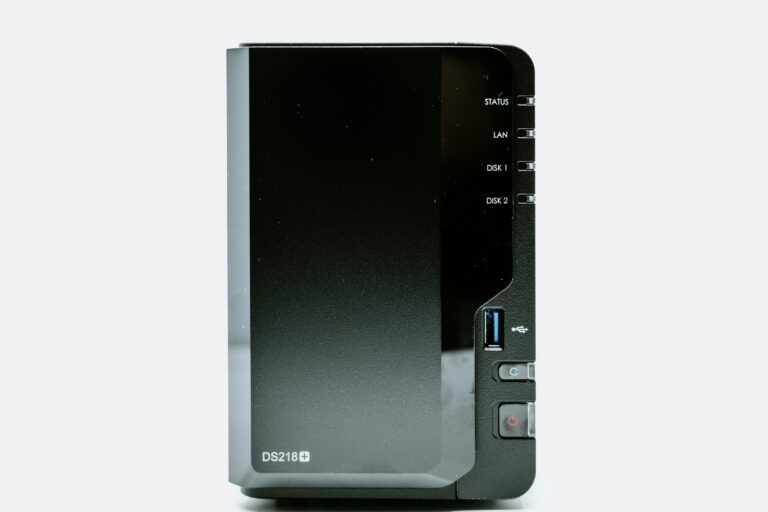
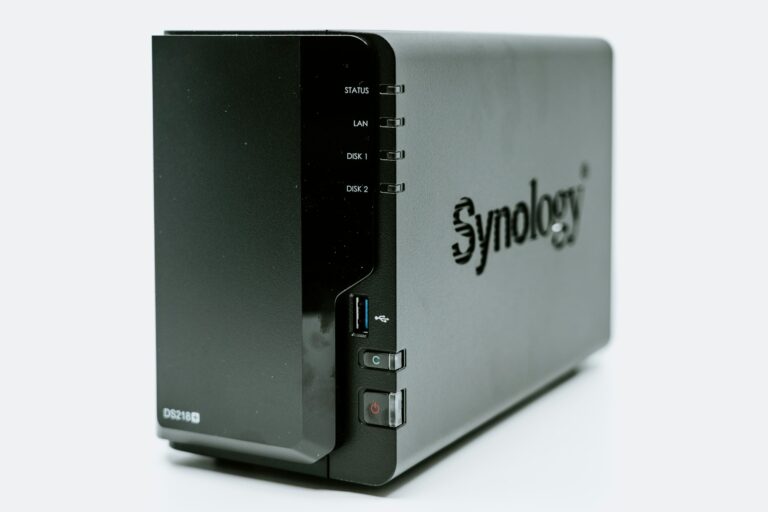
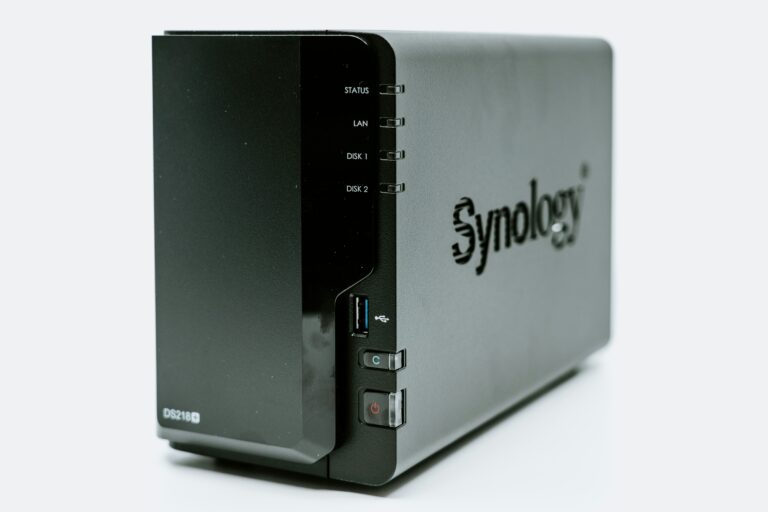
- A Synology NAS (DS223j, DS224+, or similar) with at least one hard drive installed
- A network connection — wired ethernet from your NAS to your router is strongly recommended
Software:
- Plex Media Server (free)
- A Plex account (free)
- Plex Pass (optional — we’ll explain what it unlocks)
Media files:
- Your movie and TV show files stored on the NAS
If you haven’t set up your Synology NAS yet, read our complete beginner’s guide first — it covers everything from drive installation to initial DSM setup.
A Note on Hardware and 4K Streaming
Before we dive in, one important thing to understand: Plex transcoding.
When you stream a video, Plex sometimes needs to convert it to a format your playback device understands. This conversion — called transcoding — requires processing power from your NAS.
Direct play (no transcoding) works fine on almost any Synology NAS including the DS223j. If your device can play the file format natively, the NAS just sends the file and your device does the work.
Transcoding is where lower-end NAS units struggle. The DS223j’s ARM processor can handle one or two simultaneous transcoded streams at standard definition but will struggle with 4K transcoding.
If you plan to stream 4K content to multiple devices or devices that can’t direct play, consider the Synology DS224+ or DS923+ — both have Intel processors with hardware transcoding support that handle 4K smoothly.
For most home users streaming to a single TV or a couple of devices, the DS223j handles Plex perfectly well.
| NAS Model | Best For | Buy |
|---|---|---|
| Synology DS223j | Budget pick — great for basic home streaming | Amazon → |
| Synology DS224+ | Best all-rounder for most home users | Amazon → |
| Synology DS923+ | Power users & heavy 4K transcoding (pre-configured bundle with RAM & drives) | Amazon → |
Step 1: Organize Your Media Files on the NAS
Before installing Plex, set up a clean folder structure on your NAS. Plex works best when your files are organized consistently.
In DSM (your Synology web interface), open File Station and create the following folder structure in your main shared folder:
/Media
  /Movies
  /TV Shows
  /Music
  /Photos
For movies, name files like this:
The Dark Knight (2008).mkv
Inception (2010).mp4
For TV shows, organize like this:
/TV Shows
  /Breaking Bad
    /Season 1
      Breaking Bad - S01E01 - Pilot.mkv
      Breaking Bad - S01E02 - Cat's in the Bag.mkv
Plex uses these naming conventions to automatically match your files to the correct metadata — cover art, descriptions, episode names, ratings. Inconsistent naming is the number one cause of Plex not recognizing your media correctly.
Step 2: Create a Plex Account
Go to plex.tv and create a free account. You’ll need this to activate Plex Media Server on your NAS and to access your media remotely.
The free account gives you everything you need to get started. Plex Pass (~$5/month or $120 lifetime) adds features like offline sync, hardware transcoding support, and Live TV — but it’s not required for basic streaming. Start free and upgrade later if you need those features.
Step 3: Install Plex Media Server on Your Synology
- Log into your Synology DSM at the local IP address of your NAS (usually something like 192.168.1.x — check your router’s device list if you’re not sure)
- Open Package Center — this is Synology’s app store
- Search for Plex Media Server
- Click Install — DSM will download and install Plex automatically
- Once installed click Open to launch Plex for the first time
Step 4: Initial Plex Setup
When Plex opens for the first time it’ll walk you through a setup wizard. Here’s what to do at each step:
Sign in: Log in with the Plex account you created in Step 2.
Name your server: Give it something recognizable like “Home NAS” or “The Nest Lab.” This is what shows up when you connect from other devices.
Add your media libraries: This is where you tell Plex where your media files are.
Click Add Library and select the type (Movies, TV Shows, Music). Then click Browse for Media Folder and navigate to the folders you created in Step 1:
- Movies →
/volume1/Media/Movies - TV Shows →
/volume1/Media/TV Shows - Music →
/volume1/Media/Music
Click Add Library for each one. Plex will immediately start scanning your files and pulling in metadata. Depending on how much media you have this can take anywhere from a few minutes to a few hours.
Step 5: Install the Plex App on Your Devices
Plex has apps for virtually every platform:
- Smart TVs — Samsung, LG, Sony — search for Plex in your TV’s app store
- Apple TV — App Store
- Roku — Roku Channel Store
- iPhone/iPad — App Store
- Android — Google Play
- Amazon Fire TV — Amazon Appstore
- Web browser — app.plex.tv works on any computer
Open the Plex app on your device, sign in with the same Plex account, and your NAS should appear automatically as a media server. Your entire library is immediately available to browse and stream.
Step 6: Enable Remote Access (Optional)
By default Plex works on your local home network. To stream your media when you’re away from home — at work, on vacation, on your phone anywhere — enable remote access.
In Plex Media Server settings go to Settings → Remote Access and make sure it’s enabled. Plex handles the network configuration automatically using their relay servers.
Note: Remote streaming over the internet requires more bandwidth and may trigger transcoding depending on your connection speed and the device you’re streaming to.
Connecting Plex to Home Assistant
If you’re running Home Assistant on a Raspberry Pi, the Plex integration is worth setting up. It lets you:
- See what’s currently playing on any Plex client
- Trigger automations based on Plex activity — dim the lights when a movie starts, turn them back on when it pauses
- Control Plex playback from your Home Assistant dashboard
In Home Assistant go to Settings → Devices & Services → Add Integration and search for Plex. Sign in with your Plex account and it’ll automatically detect your Plex Media Server on the NAS.
The most popular automation: lights automatically dim to 20% when you hit play on a movie and return to full brightness when you pause or stop. Takes about five minutes to set up and works every single time without you touching a light switch.
Plex Pass — Is It Worth It?
The free tier covers everything in this guide. Here’s what Plex Pass adds:
| Feature | Free | Plex Pass |
|---|---|---|
| Local streaming | ✅ | ✅ |
| Remote streaming | ✅ | ✅ |
| Mobile apps | Limited | Full |
| Hardware transcoding | ❌ | ✅ |
| Offline sync (downloads) | ❌ | ✅ |
| Live TV & DVR | ❌ | ✅ |
| Lyrics & music features | Limited | Full |
Hardware transcoding is the most valuable Plex Pass feature if you have a DS224+ or DS923+. It offloads transcoding from the CPU to the Intel Quick Sync engine, dramatically improving performance for multiple simultaneous streams or 4K content.
For a DS223j on a budget setup, start with the free tier. It handles direct play perfectly and most home users never need to transcode.
Troubleshooting Common Issues
Plex can’t find my media files: Check your folder structure and file naming. Make sure files follow the naming conventions in Step 1. You can force a library scan in Plex by going to your library, clicking the three dots, and selecting Scan Library Files.
Buffering during playback: This usually means Plex is transcoding and your NAS can’t keep up. Check if your playback device supports direct play for the file format. MKV and MP4 files with H.264 video are direct play on almost every modern device. H.265/HEVC files often require transcoding on older devices.
Can’t connect from outside my home: Check that remote access is enabled in Plex settings. If it shows a red warning, your router may need a port forward — Plex has a guide for this in their support documentation.
Plex is using too much CPU: Enable hardware transcoding with Plex Pass if your NAS has an Intel processor. Otherwise reduce the number of simultaneous streams or encourage devices to direct play by converting files to H.264.
The Bottom Line
Setting up Plex on a Synology NAS takes about 30 minutes and gives you a personal streaming service that rivals Netflix — for media you already own, with no monthly subscription. Your entire movie and TV collection becomes available on every screen in your home, organized beautifully, accessible anywhere.
Pair it with the Home Assistant integration and your living room lights will dim automatically every time a movie starts. It’s one of those setups you wonder how you lived without.
What you need to get started:
Want to take your Plex setup further? Our guide to integrating Plex with Home Assistant — including the automatic lights-off automation — is coming soon.